Stop a portrait edit from silently changing apparent age
You asked for a better background and got a better background, plus darker hair, a firmer jaw and none of the lines around your eyes. Nobody asked for the last three.
What you'll make
an edited work portrait that keeps the person’s grey hair, lines, jawline and expression, or a clear decision to restart from the original.
What you'll need
a recent, readable photo of yourself, or of someone who has agreed, that your organisation lets you use in an image editor. ChatGPT and Gemini both edit an uploaded photo. Keep the untouched original, and for a real use, the person’s own say on the result. Allow about 15 minutes.
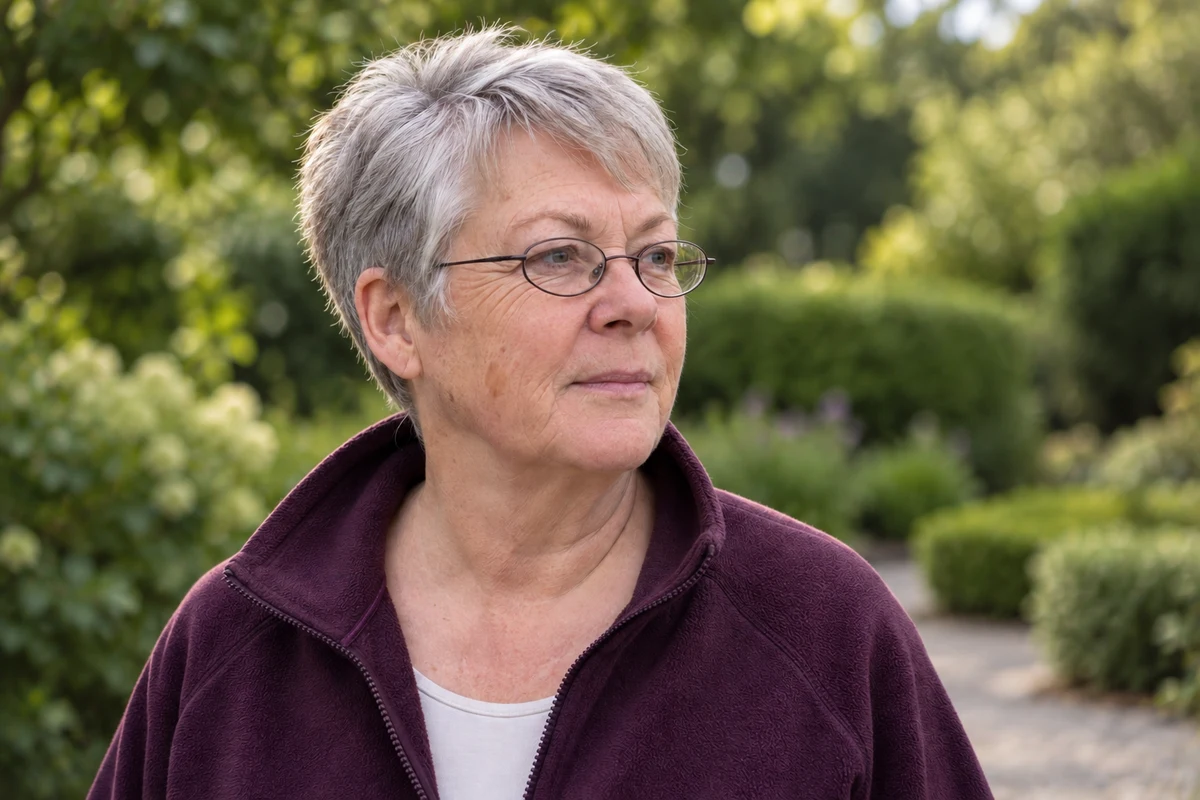
Example result.
1. Ask for the change and name what stays
Vague praise words invite a makeover. “Make me look fresh”, “younger energy” or “more flattering” all tell the editor that changing the face is part of the job. Describe the practical change you need instead, and list the visible features that must stay:
Edit my attached portrait for [change you need]. Keep my facial
proportions, expression, hairline, grey hair, lines around the eyes and
forehead, skin detail, clothes and pose as they are in the original.
No rejuvenation, beauty makeover, face slimming or new smile. If a
detail isn't clear in the original, don't invent it. Make one candidate.
[change you need] is the actual job, such as “a soft garden background instead of the gate”.
Don’t use an age number as a shortcut. Asking an editor to make someone “look 50” brings in a stereotype of 50 rather than protecting this person’s face.
Why this works: a model asked for a “professional headshot” tends towards a polished, smoother, younger default. Naming the features that carry age gives it something specific to keep.
What you should see: one candidate with the change you asked for and the listed features still visible.
2. Compare region by region, then the whole face
Put the original and the candidate side by side at the same size. Then check, in this order:
- Hair: colour at the temples and parting, and the hairline.
- Eyes and forehead: lines and under-eye shadow still present, even if the light is softer.
- Jaw and cheeks: the same outline, not a tighter or slimmer one.
- Mouth and expression: the same smile, not a wider or newer one.
Then step back and look at the whole portrait. Light alone can soften a line, so one fainter crease isn’t a problem. Darker hair, a firmer jaw and missing lines together are a different, younger-looking person.
Why this works: each change can look small on its own. Checking a fixed list stops you from approving them one at a time.
What you should see: a short note for each region: “same”, or what changed.
3. Ask the person, then decide
For a real portrait, show the person both images and your notes. They’re the only one who can say whether it still looks like them; a reviewer can like the lighting while the person rejects the face. If the candidate passes, use it. If more than one region drifted, go back to the original rather than repairing the candidate.
Why this works: repairing a drifted candidate stacks one edit on another. Starting again from the original keeps the source as the reference.
What you should see: a clear yes, a single repair, or a restart.
Check the result
- Grey hair is the same colour and in the same places, and the hairline hasn’t moved.
- Lines around the eyes and forehead are still there.
- The jaw, cheeks and smile match the original.
- The person in the photo agrees it looks like them.
The usual failure: the background is right, and the face has quietly become younger: grey darkened at the temples, lines erased, jaw tightened. Spot it by checking the hair and the eye area first; they change most often and most quietly. Repair the one feature that changed:
The new background is useful, but the candidate changed [feature].
Go back to my untouched original. Restore that feature and the original
face shape, keeping the new light and background. Don't add generic
wrinkles or aim for any particular age. Keep the expression, hair and
clothes from the original. Make one candidate.
[feature] is what changed, such as “the grey at the temples and the lines under the eyes”. “Add wrinkles” is the wrong repair: it swaps one generic face for another.
Worked example: a garden-gate photo to a website portrait
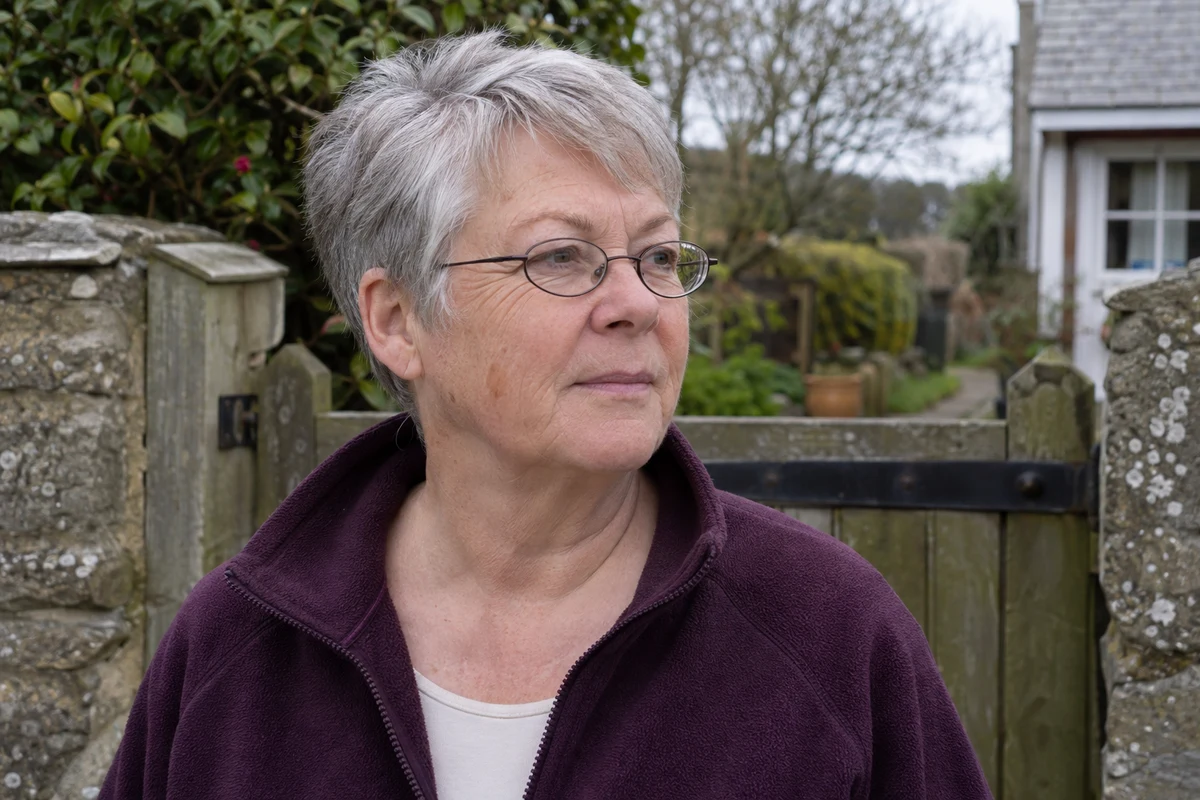
Fictional example. The photo at the top shows an older woman with short grey hair, oval glasses and visible lines around her eyes, standing by a garden gate. She asked for a softer garden background for her organisation’s website. A first candidate came back with this review note:
Hair: grey darkened at the temples
Eyes and forehead: under-eye lines gone; forehead smoother
Jaw and cheeks: jawline sharper
Mouth and expression: same
Whole face: looks noticeably younger than the original- Three regions moved together. Any one of them might pass as better light. Together they’re a younger woman, so the note goes back to the original rather than patching the candidate.
- The repair named features, not an age. The step 1 prompt was rerun from the original, with “grey hair at the temples, lines under the eyes and the original jawline” added to the keep list.
- The edit at the top passed the same check. Grey hair, lines, glasses, fleece and jaw match the gate photo; the background and light are the only changes. She still needs to say yes before it’s used.
Try it
Inspect features without assigning an age
Inspect changed lines, proportions and hair rather than equating flattery with success.
Compare the hair, lines and face shape with the original. Don't judge the edit by the age it seems to suggest.
Task kit for this job: Download (ZIP) · Reusable instructions
Go deeper
An illustration is an interpretation too
Clay, line or watercolour portraits simplify lines and can enlarge eyes. A recognisable style doesn’t remove the need to compare with the original. Label the result as an illustration, and say what it changes, rather than presenting it as a photographic likeness.
Keep how recent the photo is separate from how good the edit is
A faithful edit of a photo from ten years ago is still a photo from ten years ago. For a current work portrait, start from a current photo. Don’t ask AI to predict how someone looks today from an older picture. The restart guide covers when to go back for a new source.
Check skin texture separately
Age drift and over-smoothing often arrive together, but they’re different checks. The skin texture guide covers pores and fine detail; this guide covers hair, lines and face shape.