Make a portrait contact sheet that helps you choose
Three treatments on a slide, three different people, and everyone picks the one with the nicest smile. A contact sheet only helps you choose a style if the photo, the crop and everything but the style stay the same.
What you'll make
a one-page contact sheet of edits made from the same photo, at the same crop, with one thing changed between them, and a label under each saying what was asked for and what you checked.
What you'll need
one current photo of the person (who has agreed), the place the portrait will go, and two or three edits you’ve made from that photo in an image editor such as ChatGPT or Gemini. A slide in PowerPoint, Google Slides or Canva is enough for the sheet. Allow about 20 minutes.
Example result.


1. Choose the one thing you’re comparing
Pick one variable: light, background or style (photo, pencil, duotone). Keep everything else the same: the same original photo, the same pose and expression, the same crop and the same destination. If two candidates differ in more than one way, the sheet can’t tell you which change you liked.
Why this works: a comparison is only fair if one thing changes. Otherwise the “winning” style may just be the better smile or the nicer jacket.
What you should see: a one-line plan, such as “same patio photo, square crop for the team page, comparing light only”.
2. Build the sheet with labels and an empty check column
Put the original first, then each candidate at the same height, side by side. On a slide in PowerPoint, Google Slides or Canva, add a text box under each image with:
- an ID and the file name;
- what you asked for (“low-key light only”);
- what changed apart from that (you fill this in);
- the person’s check: pending, yes or no.
If you’d rather have AI lay it out, ChatGPT can make an editable slide from attached images:
Make an editable one-slide contact sheet from my attached files for
[use]. Put the original first, then each candidate at the same height.
Under each, add: ID, file name, the treatment I asked for ([treatments]),
an empty "other changes" line for me to fill in and "Person check:
pending". Don't judge the images, rank them or add any I didn't attach.
[use] is the destination, such as “the team page”. [treatments] lists what you asked for in each candidate, in file order.
Why this works: leaving the “other changes” line for you keeps the judgement with a person who can compare against the original. The model lays out; you check.
What you should see: an editable slide with every file in it once, in order, with the labels filled and the check lines blank.
3. Check in the right order, then choose
Work across the sheet in this order:
- Person: reject any candidate that changes the face, hair, clothes or body. Write what changed on its label.
- Use: check each remaining candidate at its real size and crop.
- Preference: only now choose the treatment you like.
Don’t trade a changed face against a nicer background. The person check is a requirement, not one score among several. For a real portrait, the person in the photo makes that call.
Why this works: if preference comes first, a flattering but changed candidate wins before anyone notices what changed.
What you should see: labels filled in, rejected candidates marked, and one choice, or “inconclusive” if no fair comparison remains.
Check the result
- Every candidate comes from the same original photo and uses the same crop.
- Each label says what was asked for and what else changed.
- Any candidate with an unasked-for change is marked “not comparable” or rejected.
- No candidate is marked chosen before the person check.
The usual failure: a candidate that changed two things gets compared as if it changed one, and the extra change wins the vote. Spot it by reading each “other changes” line before anyone picks. Then fix the sheet:
The sheet compares [candidate] as if only [variable] changed, but it
also changed [other change]. Mark it "not comparable" on the sheet.
For the next round, use the same original and crop and change only
[variable]. Keep the file names and "Person check: pending" visible.
Worked example: a light comparison for a team page
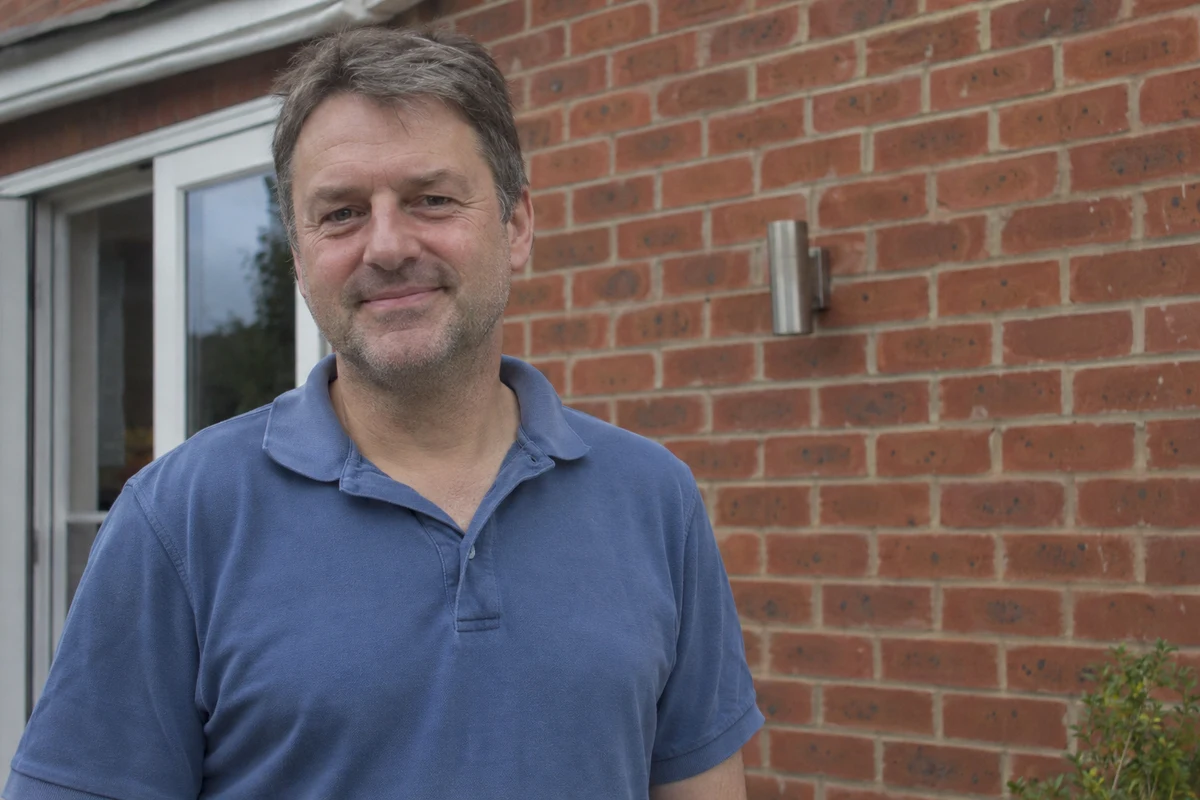
Fictional example. A team lead wanted to choose a lighting style for the team page and made two low-key edits from one patio photo, shown in the example result.
The first version of the sheet had two labels, “A: low-key” and “B: low-key”, and three of four colleagues picked A. Reading the images against the original showed why: A had added a navy blazer over his polo shirt. The vote was about the jacket, not the light.
- The “other changes” line caught it. Once someone had to write “blazer added” under A, it was obviously not the same comparison as B.
- The repair prompt relabelled the sheet. With “A”, “low-key light” and “a navy blazer over the polo”, A became “not comparable”. The low-key portrait guide covers repairing that edit.
- The remaining choice was honest. B is the only fair low-key candidate. To compare low-key against, say, window light, the next round adds a window-light edit from the same photo and crop.
Task kit for this job: Download (ZIP) · Reusable instructions
Go deeper
A library of different people isn't a comparison
A gallery of styles, each shown on a different person, is good for finding ideas. It can’t tell you which style suits your colleague, because the faces, expressions and settings all differ. Use it to choose two or three treatments, then make those from your own photo.
Make small previews with ordinary tools
Don’t generate a new face for each thumbnail. Resize or crop the chosen files in an ordinary editor, then check them at real size. The profile circle guide shows why the smallest view needs its own check.
Compare a team's treatment, not their faces
On a team sheet, the question is whether one treatment works for everyone, not who looks best. Each person approves their own portrait separately. The team portrait approval sheet records those decisions.