Prepare a checked headshot file for LinkedIn
An AI answer that says "800 by 800 JPEG" is not a checked file. Check the download itself, then preview the crop the profile will show.
What you'll make
a square JPEG or PNG of your chosen headshot that you’ve checked yourself for type, pixel size and file size, plus a look at how LinkedIn’s circle will crop it.
What you'll need
the headshot you’ve chosen and its untouched original, an ordinary image editor (Preview or Photos on a Mac, Photos or Paint on Windows) and your LinkedIn account for the final upload. Allow about 10 minutes.
Example result.
| File | Type and pixels | Size |
|---|---|---|
| headshot-linkedin.jpg | JPEG, 800 × 800 | 80 KB |
| Checked against | PNG or JPG, 400 × 400 to 7680 × 4320 | under 8 MB |
1. Check what LinkedIn accepts today
LinkedIn’s help currently says a profile photo must be PNG or JPG, at most 8 MB, and between 400 × 400 and 7680 × 4320 pixels. These limits change, so check the upload screen when you get there. LinkedIn shows the photo in a circle, so a file that passes every limit can still be a poor profile picture if the circle cuts off hair or the expression.
Why this works: the format check and the appearance check are separate. Knowing the limits first tells you what to export; the circle tells you whether it’ll look right.
What you should see: a note of the type, pixel range and size limit you’re aiming for.
2. Export the file with an ordinary tool
Crop or resize the chosen headshot in your image editor and export it as JPEG or PNG. On a Mac, Preview’s File › Export lets you choose the format. If you’d rather ask an AI tool that can return files, keep the person fixed:
Use my attached headshot as a fixed image; don't generate a new person.
Make a square [format] export at [pixel size] using ordinary crop,
resize or background padding that matches the existing background.
Keep the photographed hair and shoulders. Then tell me the file's
real type, width, height and file size, and say which of those you
checked rather than assumed.
[format] is JPEG or PNG. [pixel size] is your target, such as 800 × 800 pixels. If your chat can’t export a file, ask for the steps in your image editor instead. A preview or an instruction isn’t the download.
Why this works: resizing and converting should never need new facial detail. Asking which properties were checked separates a measured answer from a confident guess.
What you should see: a downloaded file and a short report of its type, dimensions and size.
3. Check the file yourself, then the picture
Open the download, not the chat’s description of it:
- Mac: open it in Preview and choose Tools › Show Inspector for the pixel size and file size.
- Windows: right-click the file, choose Properties and open the Details tab.
The type your computer shows usually comes from the file’s extension, so it won’t catch a PNG that has been renamed .jpg. The file checker in the Try it section reads the file’s header in your browser, without uploading it, and reports what it really is. If the type is wrong, open the file and export it again in the right format. Renaming doesn’t convert it.
Then look at the picture: compare it with the original, and view it small and round. The profile circle guide covers fixing the crop.
Why this works: the file is what LinkedIn receives. The extension, the filename and the chat’s report are all claims about it.
What you should see: a type, pixel size and file size that match your note from step 1, and a face that still works in a small circle.
Check the result
- The file’s real type is JPEG or PNG, whatever its name says.
- The pixel size is within LinkedIn’s range and the file is under 8 MB.
- The face, hair and clothes match the original; nothing has been redrawn.
- In a small circle, the hair is complete and there are no odd bands or edges.
The usual failure: the AI, or a quick rename, gives you a file called .jpg that’s still a PNG inside. It may upload anyway, or be rejected, and either way you don’t know what you’ve got. Spot it with the file checker, or by a file size far larger than a JPEG of the same picture should be.
The picture is right, but the file is [problem]. Keep the image content
exactly as it is and fix only that property with an ordinary
conversion. Don't regenerate the face. Give me the new file and its
real type, width, height and file size.
[problem] is what you found, such as “a PNG named .jpg” or “2.1 MB at 1536 × 1024 pixels”.
Worked example: an 800-pixel export that wasn’t a JPEG
Fictional example. A press-style headshot was exported for LinkedIn at 800 × 800 pixels, with plain background padding above and below to make it square. The chat reported “800 × 800 JPEG, ready to upload”. The file checker said:
headshot-linkedin.jpg: 755,307 bytes; PNG; 800 × 800 decoded pixels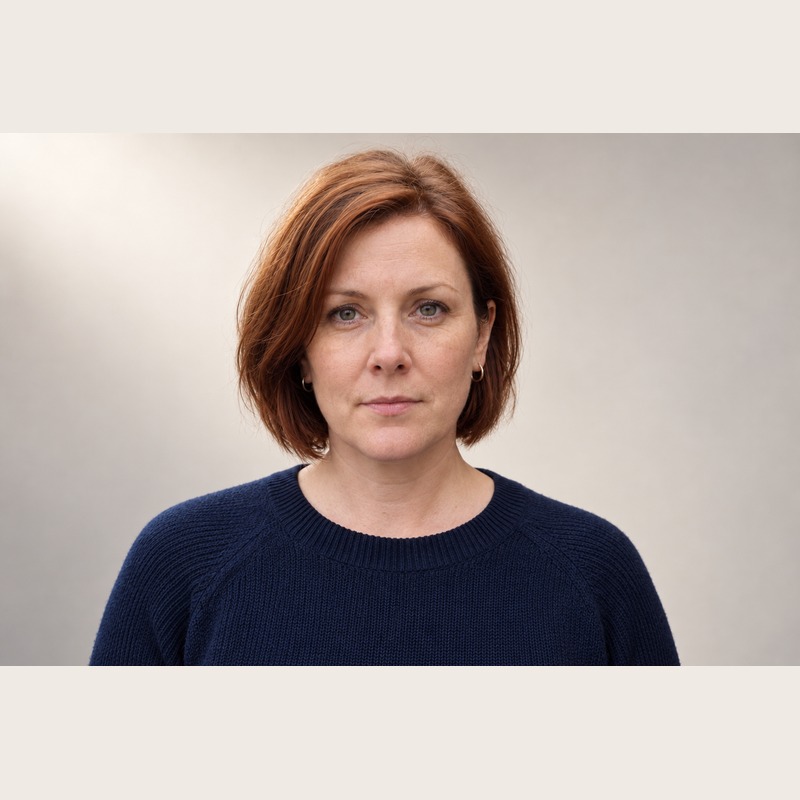
- The name was wrong. The file was a PNG called
.jpg. Re-exporting it as JPEG, via the repair prompt with “a PNG named .jpg”, gave an 80 KB JPEG at the same 800 × 800 pixels. - The size was the clue. 755 KB for an 800-pixel headshot is typical of PNG; the JPEG of the same picture is about a tenth of that.
- The circle showed a second problem. The padding bands are paler than the grey backdrop, so they show as caps at the top and bottom of the circle. For a real profile, crop square from the original instead, or pad with the backdrop colour.
Try it
Check the file, not the name
Request and verify actual format, dimensions and size instead of trusting the filename.
The extension is not the file type. Check the file itself, then LinkedIn's upload screen.
The example in text
- 800 × 800 export
- PNG and JPEG examples
- A PNG deliberately named .jpg
Task kit for this job: Download (ZIP) · Reusable instructions
Go deeper
File size and pixel size are different
Width and height describe the grid of pixels; file size is how many bytes the encoded file takes. JPEG compression can shrink the bytes a lot without changing the pixel size, but heavy compression smears skin and hair. If a file is over a size limit, export at a slightly lower JPEG quality before you reduce the pixel size, then look at the face at full size.
Keep a short handoff note
When someone else will use the file, write one line beside it: which original it came from, where it’s for, and its real type, pixel size and file size. The press headshot guide shows how that note stops an editor using the wrong version.