Create a business headshot that still looks like you
Use ChatGPT Images for a restrained edit, then check the face, details and crop against the original.
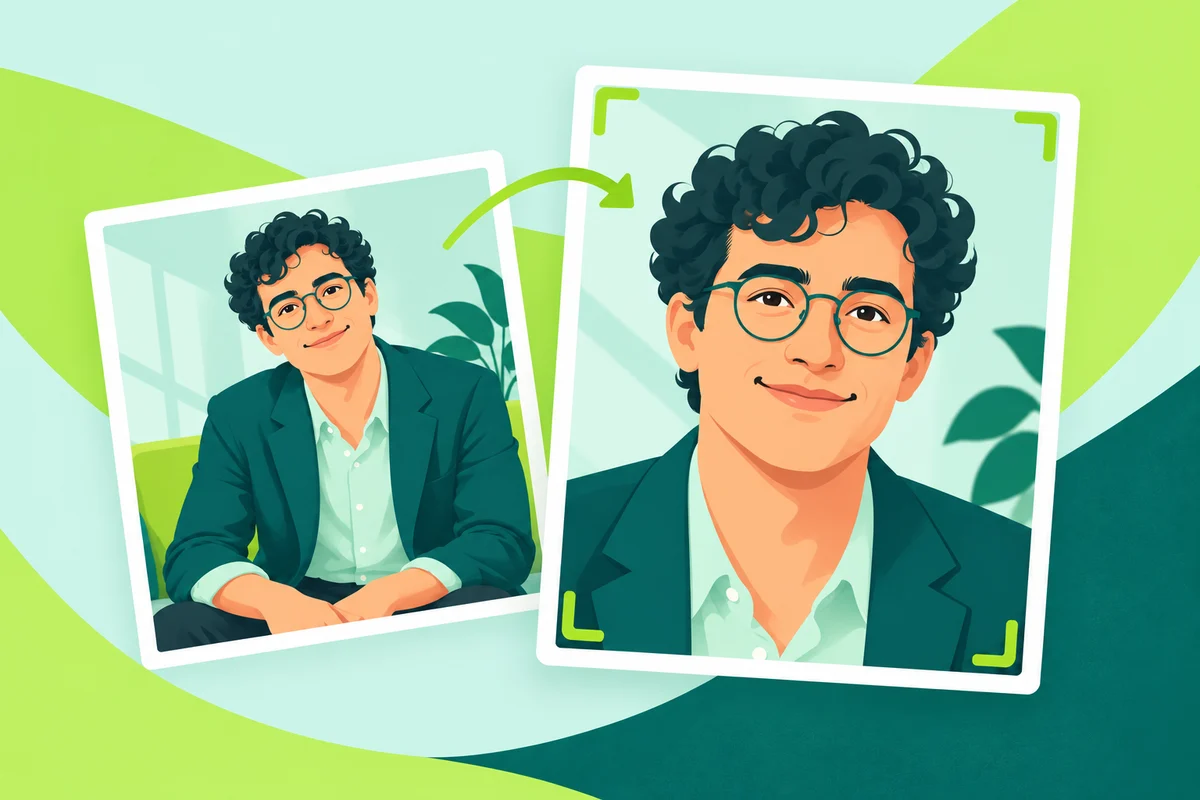
Illustration using a fictional person.
A practical walkthrough. The demonstration pair depicts a fictional adult and was generated for the supplied editorial samples. We have not tested this workflow on a real person's photograph or proved identity preservation.
A business headshot has a fairly modest job: people should recognise you when you turn up. Ask AI to make you look “successful” and it may decide you need a new jaw, expensive teeth and an office you could not possibly afford.
Start with a photograph worth keeping and give the model much less freedom. A plain background and softer lighting may be enough. You are trying to improve the picture, rather than find out who the software thinks should have your job.
What you'll make
a restrained head-and-shoulders image to review for a professional profile. Allow time to reject a result and start again.
What you'll need
a recent photograph of yourself, or one you have permission to edit, plus an account with ChatGPT Images available. Controls and usage limits can vary. This guide uses an uploaded photo and written instructions; no paid automation or connected app is required.
Before uploading: use an account your organisation approves. Keep private documents, client details and other people out of the picture. Check how the service handles your photo and what your organisation permits. The example below uses an entirely fictional adult.
1. Choose a photograph worth keeping
Use a clear, well-lit picture with the camera near eye level and both shoulders visible. Wear something you would actually wear for work. A recent photograph near a window is a better starting point than a dark crop from somebody else’s wedding.
Keep an untouched copy. You will need it beside every result; remembering your own face is not quite the same thing as checking it.
Avoid sunglasses, group shots and a face that occupies six pixels at the back of a room. The more you ask the model to rescue a poor source, the harder it becomes to tell whether it has also redesigned the person.
2. Upload the image and ask for a small edit
In ChatGPT, attach the photograph and describe the change you want. OpenAI’s image instructions support editing an uploaded image through a written request. Use Images where it appears in your account.
Copy this prompt:
Edit the attached photo into a natural professional headshot.
Preserve the person's identity, facial proportions, apparent age,
skin texture, hairstyle and expression. Keep the existing clothing.
Change the background to a plain warm grey and use soft, believable
window light. Frame head and shoulders in a square crop with some
space above the head.

Do not reshape the face, whiten teeth, remove every line, add
jewellery or invent a luxury office. Aim for a well-taken photograph
of the same person. If an edit would require inventing a hidden
feature or substantially changing the face, tell me.
These instructions describe what you want. They cannot guarantee that the result preserves a likeness. That is why the next step matters more than finding another flattering adjective.
3. Compare the result with the original
Keep the original and result open together. Check the eyes, nose, jaw, ears, hairline and distinctive marks. Look for a changed apparent age, an unfamiliar expression or skin that has acquired the texture of a kitchen worktop.
Check the less glamorous details too: glasses, earrings, collars, buttons, teeth and the edges of hair. A tiny profile circle can disguise a surprisingly ambitious ear.
A fictional demonstration
Both images below were generated for the supplied editorial sample pack. The first is a fictional starting portrait; the second is its generated professional edit. Neither is a real person’s photograph, and the pair does not establish how reliably the tool preserves real identities.
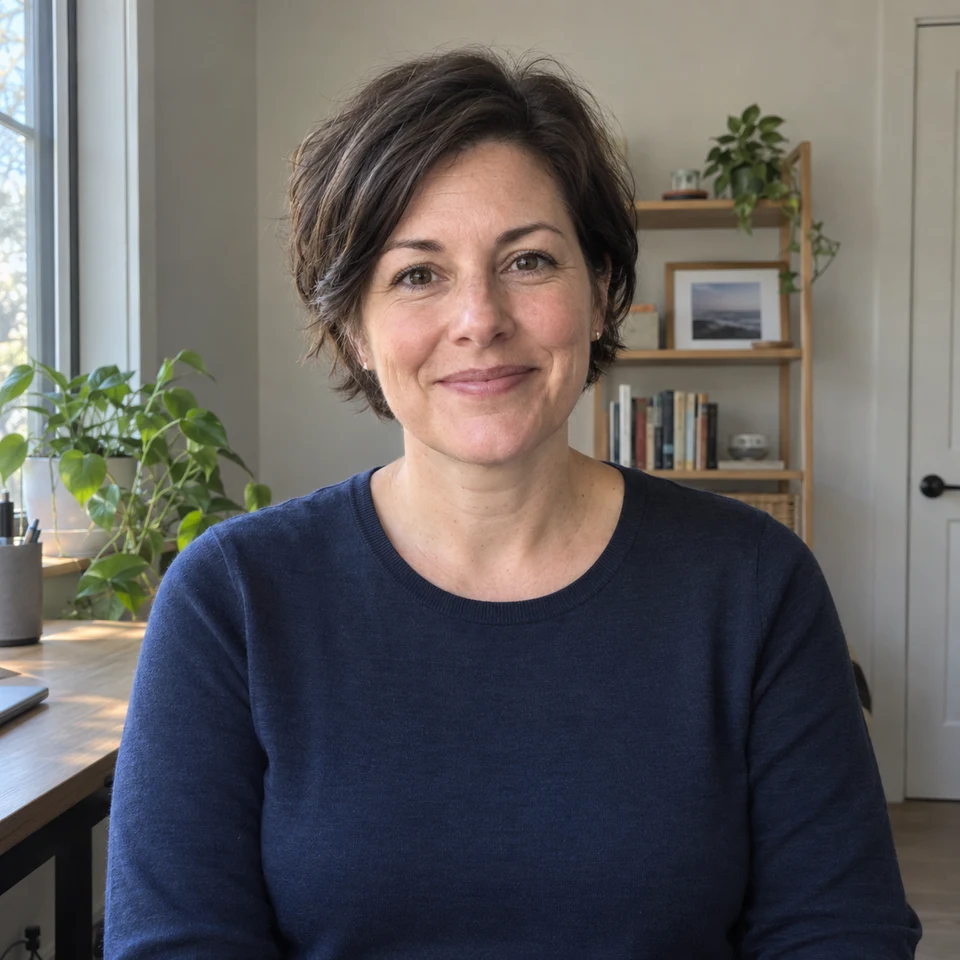
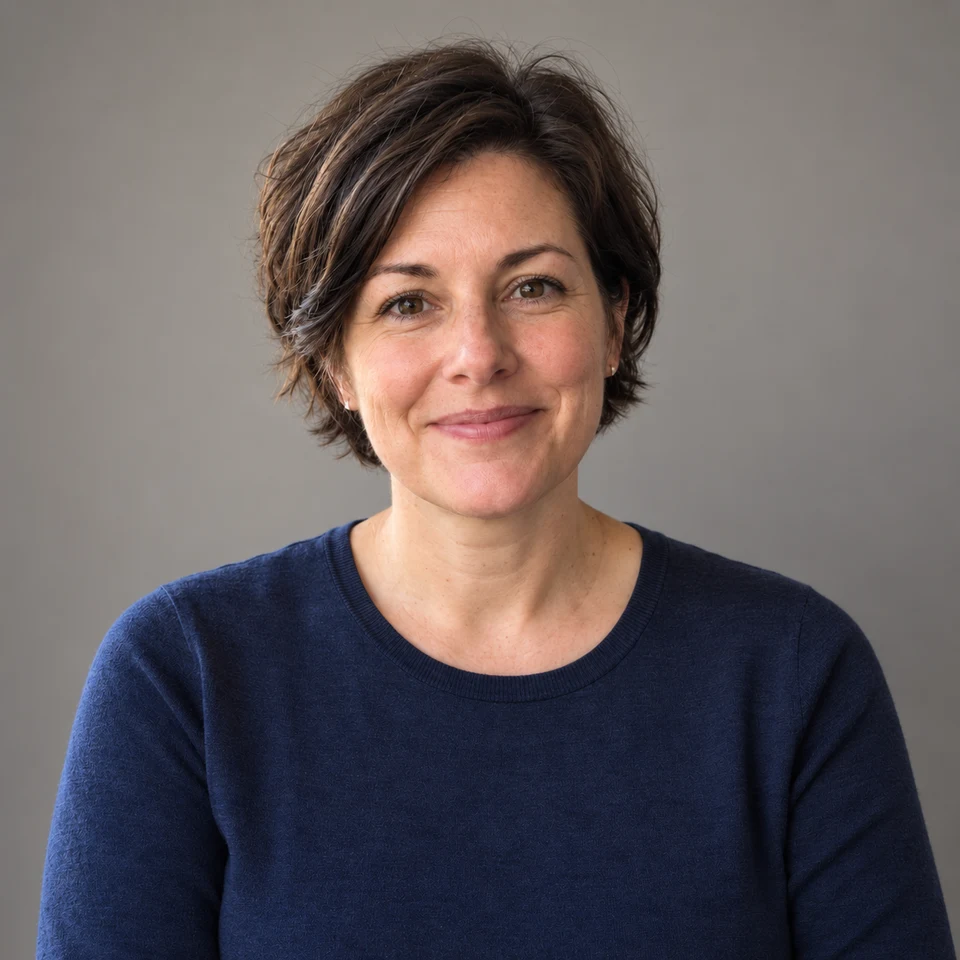
The quieter background illustrates the kind of limited change to request. Compare the facial details yourself; even this fictional example is not a licence to accept a real edit without checking it.
4. Reject changes to the person
If the face is wrong, reject that version. Return to the original and ask for a more conservative edit. Continuing to polish a likeness that was wrong two versions ago generally produces a very presentable stranger.
Use this check before you keep anything:
- Would someone who knows you recognise you at first glance?
- Are your age, facial proportions and expression still plausible?
- Do the hair, glasses, clothing and accessories match the source?
- Does the background imply a workplace or qualification you do not have?
- Would you be comfortable showing the original beside the result?
If you cannot answer those questions confidently, use the original or take another photograph. An ordinary accurate headshot is useful.
5. Change one thing at a time
Once the likeness is acceptable, make a narrow follow-up request:
Keep the face, hair, age, expression, clothing and framing unchanged.
Change only the background from warm grey to pale neutral blue.
Do not retouch the person or add anything else.
Compare again after each edit. OpenAI notes that image edits can extend beyond a selected area. A small request does not remove the need for a check.
If the tool changes the person while changing the background, return to the original. Do not assume that saying “only” makes the boundary infallible.
6. Preview the crop before using it
Download the version you are happy to stand behind and keep the original separately. Preview it as a small circle and a square, because a profile crop can remove the shoulders or the top of the hair rather efficiently.
Ask a trusted colleague whether the result looks like you, rather than whether it looks good. Follow your organisation’s image policy and any disclosure requirements on the platform where you use it.
Do not use this workflow for passports, official identity documents or a picture of somebody who has not agreed to the edit.
Keep this: If somebody would walk past you at reception, the headshot has missed its main job.
Account settings and limits
Image generation and editing are subject to the features and limits available in your account. On personal accounts, check Settings → Data controls before uploading. Turning off model improvement does not delete the chat; organisational policies still apply. See OpenAI’s data controls.
Sources and status
Checked 4 October 2026 against OpenAI’s Images in ChatGPT and Data controls in ChatGPT. The source-pack pair depicts a fictional character. This is an editorial walkthrough, not a real-person test, a benchmark or a claim of guaranteed identity preservation.
For another job where a neat result still needs checking, try writing a useful weekly update.