Turn sales call notes into a follow-up that only confirms what was agreed
On the call you said the price was “probably around” a figure. In a tidy AI follow-up, “probably” has a habit of disappearing and “as agreed” turning up instead. Sort the notes first, so the email confirms what was actually agreed and everything else waits for you.

What you'll make
a sorted record of one sales call (Needs, Objections, Agreed next steps and Confirm first) and a follow-up email built only from the agreed items.
What you'll need
your notes from one call, a work AI account and permission to use customer information in it. Allow about 15–20 minutes for one call. The method works with typed text in ChatGPT, Claude, Gemini or Copilot; no CRM connection is needed. If you want to work from a recording or transcript, the customer should have been told about the capture before the call started, in line with your organisation’s rules. Explain a meeting notetaker before a client call covers that conversation. Your own typed notes are a perfectly good starting point.
Example result — a follow-up from the fictional call below.
Hi Leo,
Thanks for the call. Earlier warning of locum gaps and a rota that
nurses can use on a phone are the main needs we discussed.

Next steps:
- You send one site's rota by Wednesday 14 October.
- I send our security questionnaire answers by Friday 16 October.
- Site-lead demo: Tuesday 20 October, 14:00. I send the invite today.
- You speak to finance about budget; date to agree.

Thanks,
Maya
The rough price, annual discount, possible January start and extra onboarding sessions remain in Confirm first, outside the email.
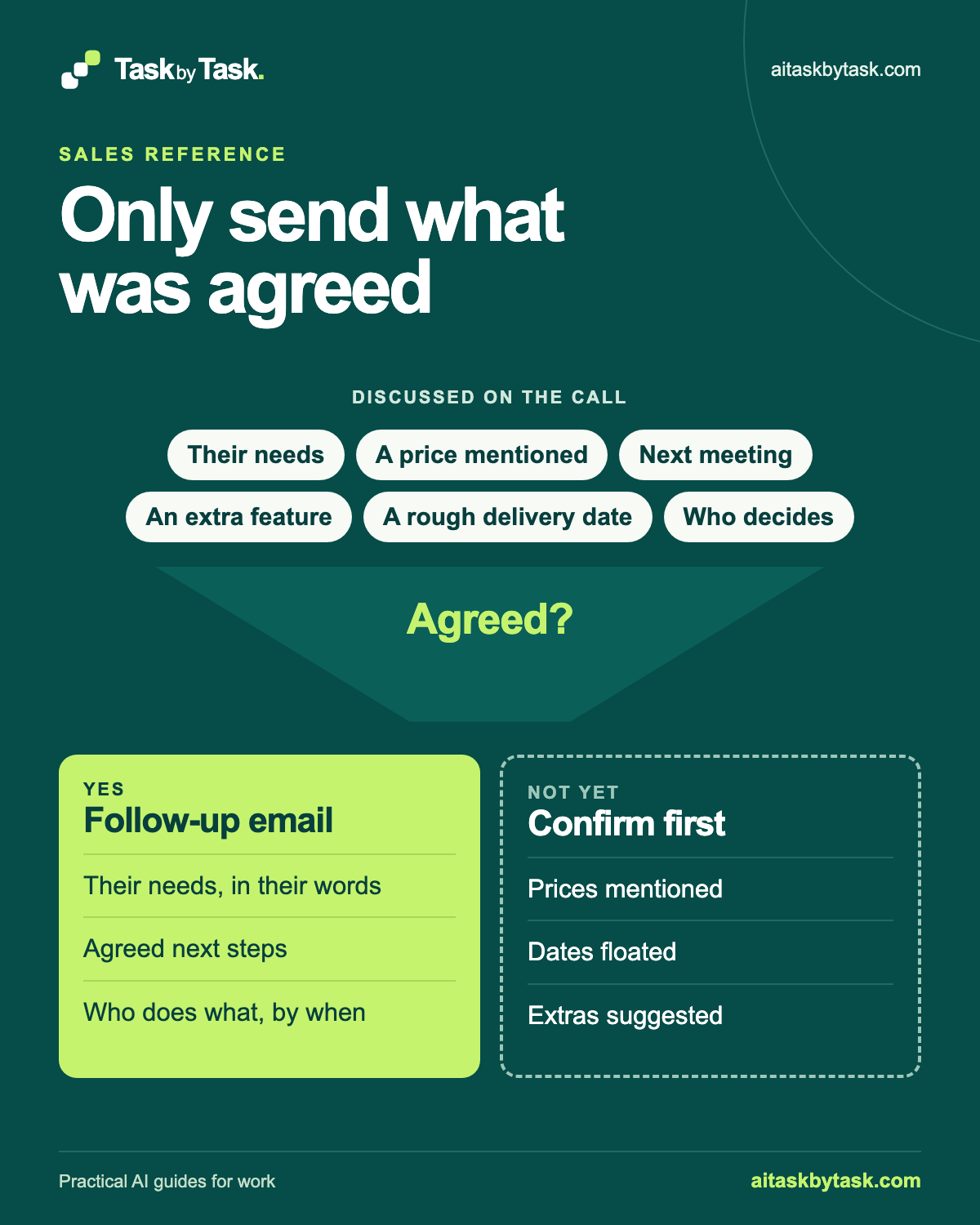
A sales call is full of things said without being settled: a rough price, a go-live month that sounded possible, an extra you might include. AI is good at turning messy notes into a confident email, and confidence is not agreement. This guide puts one filter between the call and the email. Every item has to answer Agreed? before it goes into the follow-up.
The four labels used throughout are:
- Needs: what the customer said they need, in their terms.
- Objections: concerns or reasons they gave for hesitating.
- Agreed next steps: actions both sides accepted on the call, each with an owner and a date (or “date to agree”).
- Confirm first: prices, discounts, dates, extras and anything else that was discussed but not agreed. These stay out of the email as commitments.
Prices, discounts and delivery dates stay with you and whoever approves them. The tool sorts and drafts; it does not decide what the customer is offered.
Where to do this
| Tool | How to use this text method |
|---|---|
| ChatGPT | Paste your call notes into a chat you open and run yourself. |
| Claude | Paste your call notes into a chat you open and run yourself. |
| Copilot | Paste your call notes into a chat you open and run yourself. |
| Gemini | Paste your call notes into a chat you open and run yourself. |
1. Gather the notes and mark what was said, not what you hoped
Use the notes from a single call. Add anything that changed during the call, such as “Leo suggested the 14th, then said the 15th works better”. Keep hedges intact: “probably”, “I’ll check” and “we could look at” are doing important work, and tidying them away is how a floated date becomes a deadline.
Take out what the tool doesn’t need. Personal details beyond names and roles, other customers’ information and internal margin notes can usually stay where they are.
Before you paste, decide your own test for Agreed? A sensible default: both sides accepted it on the call, and someone owns it. If you are unsure whether something cleared that bar, it goes in Confirm first. That costs you one extra question to the customer; the alternative is an email that promises something you can’t deliver.
Why this works: Keeping the hedges gives the sorter the distinction it must preserve.
What you should see: One call’s notes, with a clear rule for what counts as agreed.
2. Run the notes through the Agreed? filter
Open a fresh chat in your work account and paste this prompt, replacing the bracketed parts.
Sort the call notes below into four sections. Use only the notes.

NEEDS: what the customer said they need, in their words where possible.
OBJECTIONS: concerns or reasons they gave for hesitating.
AGREED NEXT STEPS: only actions both sides clearly accepted. For each,
give the action, owner and agreed date. If no date was agreed, write
"date to agree". Do not assign an owner or date yourself.
CONFIRM FIRST: anything discussed but not clearly agreed, especially
prices, discounts, delivery or go-live dates, extras and promises.
Quote the hedging words used (for example "probably", "I'll check").

For every item in AGREED NEXT STEPS and CONFIRM FIRST, include a short
quote from the notes that supports where you put it.
If you are unsure whether something was agreed, put it in CONFIRM FIRST.
Do not draft an email yet.

CALL NOTES
Customer: [organisation and contact role]
Our side: [your name and role]
Call date: [date]
[Paste your notes.]
Replace [organisation and contact role], [your name and role], [date], [Paste your notes.] with the corresponding detail or notes from your own task.
Why it is built this way: a quote beside each item lets you see the words the sorting relied on. The tie-break rule (“if unsure, Confirm first”) pushes errors towards an extra question rather than a false commitment. Holding back the email means you review one thing at a time. None of this guarantees the sorting is right; it makes mistakes easier to spot.
Why this works: A source quote beside each next step makes the classification checkable.
What you should see: Four sections, with quotations supporting agreed and uncertain items.
3. Check each line against the notes
Read the Agreed next steps first, because those will become promises in writing. For each one, find the quote in your notes and ask: did both of us accept this? Is the owner the person who actually said they would do it? Is the date the one agreed, or one that was merely mentioned?
Then read Confirm first. Every price, discount and date from the call should appear here unless it was genuinely agreed. If a figure is missing from both sections, the tool has dropped it: better than promoting it, but worth knowing.
If a hedged item has moved into Agreed next steps, correct it before drafting. The final check below gives a repair for that mistake.
If an owner or date is genuinely missing, leave it as “date to agree”. Don’t ask the tool to suggest one; that just moves the guess somewhere less visible.
Why this works: Checking the commitments first catches the most expensive sorting error.
What you should see: An agreed list you can support line by line, with uncertain items held back.
4. Draft the follow-up from the agreed items only
When the sorted record matches your notes, ask for the email.
Draft a follow-up email to [contact name] using only the NEEDS and
AGREED NEXT STEPS sections above.

- Open by thanking them and briefly reflecting their needs.
- List the agreed next steps with owner and date. Keep "date to agree"
  visible rather than inventing a date.
- Do not include any price, discount, go-live date or extra from
  CONFIRM FIRST as a commitment or expectation.
- If an objection is being handled by an agreed next step, you may
  mention that step. Do not argue with the objection.
- Plain, friendly British English, under 150 words. No sales pressure.

Then, separately, list the CONFIRM FIRST items with any approver explicitly named in the record, or "owner to confirm",
before I reply about it.
Replace [contact name] with the corresponding detail or notes from your own task.
Read the draft against the sorted record, line by line. Words like “as discussed”, “as agreed” and “we’ll aim for” can carry a Confirm first item back into the email in disguise. Anything about money or dates gets your approval, and your manager’s or finance’s where your organisation requires it, before it reaches the customer. You send the email; the tool does not.
Why this works: Drafting from the checked record keeps unsettled terms out of the email.
What you should see: A short follow-up and a separate list of questions to confirm internally.
Check the result
- Every next step has support in the notes, with the same owner and date.
- Hedged prices, discounts, dates and extras stay in Confirm first.
- Every sentence in the email matches Needs or an agreed next step.
- No new promise appears in the draft, subject or closing line.
The usual failure: a tentative go-live date comes back as a promise. Spot phrases such as “on track for January” where the notes say “maybe”.
"Go-live in early January" was floated, not agreed. The notes say
"maybe early January, depending on the migration". Move it to
CONFIRM FIRST with that quote. Check the other agreed next steps
for the same problem and list any you move. Then regenerate the
follow-up from NEEDS and the corrected AGREED NEXT STEPS only.
Worked example: a scheduling software call
Fictional example. Maya sells rota software. She has just spoken to Leo, operations manager at a fictional group of six dental practices. The call was on Monday 12 October. Her notes:
Leo, ops manager, dental group (6 practices). Call Mon 12 Oct.
- Rotas are in spreadsheets, one per site. Locum cover is the pain:
  "we find out about gaps on the morning".
- Wants weekend shift swaps approved by each site lead.
- Worried about moving six spreadsheets over. Last tool "was too
  fiddly for nurses on their phones".
- I said price "probably around £4 a user a month at your size".
- Leo asked about 15% off for annual. I said I'd have to check.
- Go-live: "maybe early January, depending on the migration".
- I said we could maybe add two extra onboarding sessions.
- AGREED: Leo sends one site's rota spreadsheet by Wed 14 Oct.
- AGREED: I send our security questionnaire answers by Fri 16 Oct.
- AGREED: demo for site leads Tue 20 Oct, 14:00. I send invite today.
- AGREED: Leo will talk to finance about budget. No date given.
Example result (illustrative, not a captured response). A useful sorting looks like this:
- Needs: earlier warning of locum gaps; weekend swaps approved by site leads; something nurses can use on a phone.
- Objections: effort of moving six spreadsheets; a previous tool was “too fiddly” on phones.
- Agreed next steps: Leo sends one site’s rota, Wed 14 Oct. Maya sends security answers, Fri 16 Oct. Site-lead demo Tue 20 Oct, 14:00, invite from Maya today. Leo speaks to finance about budget, date to agree.
- Confirm first: price (“probably around £4”); 15% annual discount (“I’d have to check”); go-live (“maybe early January”); two extra onboarding sessions (“could maybe add”).
Three decisions are worth noticing. The finance conversation is agreed but undated, so it keeps “date to agree” rather than acquiring a convenient Friday. Every money and date item lands in Confirm first, because each carries its own hedge. And the onboarding sessions are there too: offering an extra is a commercial decision.
The illustrative email then thanks Leo, reflects the locum and phone points, lists the four agreed steps with owners and dates, without adding a promise about what the demo will include. It says nothing about £4, 15%, January or bonus sessions. Maya checks those with her manager before she mentions any of them.
Likely failure: an email that ends “We’re on track for an early January go-live.” The notes say “maybe”. Use the final-check repair, then ask for the email again from the corrected sections.
Go deeper
You can stop after a checked follow-up. These lessons help with the Confirm first pile, the final send check and what happens after the email goes.
Turn Confirm first into questions you can answer
The Confirm first pile is a to-do list for you, not for the customer. Ask the tool to turn each item into an internal question with an owner, so nothing gets quietly forgotten or quietly promised.
For each CONFIRM FIRST item, write one internal question I need
answered before replying to the customer about it, and suggest which
role usually answers it (for example sales manager, finance, delivery).
Do not answer the questions or suggest a price, discount or date.
Once the responsible person has confirmed an answer, it becomes something you can send. Until then, if the customer asks, “I’m checking that and will come back to you” is an honest reply.
Run an agreement check on the finished email
After editing, compare the email with the sorted record in a fresh chat.
Compare the EMAIL with the SORTED RECORD below. List every sentence in
the email that states or implies a price, discount, date, deliverable
or promise. For each, say whether it matches an AGREED NEXT STEP
exactly, matches a CONFIRM FIRST item, or has no source.
Do not rewrite the email.

SORTED RECORD
[Paste the checked four sections.]

EMAIL
[Paste the draft.]
Replace [Paste the checked four sections.], [Paste the draft.] with the corresponding detail or notes from your own task.
Anything matching Confirm first or with no source comes out of the email or waits for approval. This check is a second pair of eyes, not a sign-off. The decision to send is yours.
Use the same sort for the handover and the bigger picture
The sorted record is useful after the email too. If a colleague might pick up the account, write a CRM call summary the next person can actually use, keeping the Confirm first items marked as unconfirmed so nobody else promises them either.
For internal meetings rather than customer calls, extract actions from meeting notes uses the same owner-and-date discipline. And if the same Objections keep appearing across several calls, find customer questions your FAQ may be missing shows how to group them with evidence for the person who owns the FAQ.
Sources
The four-section sort and example are an editorial method. No CRM connection or automated sending is used here.