Sort your inbox before you let AI reply
The inbox is full and an AI tool offers to answer it for you. Before it writes a word to a customer, decide what the piles are, check that it can sort last week's email into them, and treat label, draft, send and delete as four separate switches. Most of the value arrives long before the risky ones.

What you'll make
a short set of inbox category definitions, a tested sort of past emails, and a written decision about which of four switches stay on: LABEL, DRAFT, SEND and DELETE.
What you'll need
a shared or personal inbox you are responsible for, about 20–30 past emails you are permitted to use for testing, and an AI account your organisation approves for that email content. If customer, employee or financial details are involved, confirm permission before pasting anything. Allow about half an hour to define the categories and test a small batch. A fictional or anonymised batch is fine for learning the method; removing names does not always make a distinctive message anonymous.
Example result — the workshop’s decision.
Plain rules: notices and known supplier addresses.
AI labels: Quotes, Orders, Payments; ambiguous mail goes to Unsure.
AI drafts: Quotes only; the owner checks and sends each reply.
Send: off. Delete: off.
Unsure owner: a named colleague, twice each working day.
Retest: a fresh batch after changing a category definition.
Automated replies feel like the prize, but sorting is the foundation. If a tool cannot reliably tell a booking request from a complaint, a polite auto-reply to the complaint is not progress. It is a faster way to annoy someone.
Where to do this
| Tool | How to use this text method |
|---|---|
| ChatGPT | Paste category definitions and a numbered test batch into a chat; this does not connect the inbox. |
| Claude | Paste category definitions and a numbered test batch into a chat; this does not connect the inbox. |
| Copilot | Paste category definitions and a numbered test batch into a chat; this does not connect the inbox. |
| Gemini | Paste category definitions and a numbered test batch into a chat; this does not connect the inbox. |
1. Think in four switches, not one
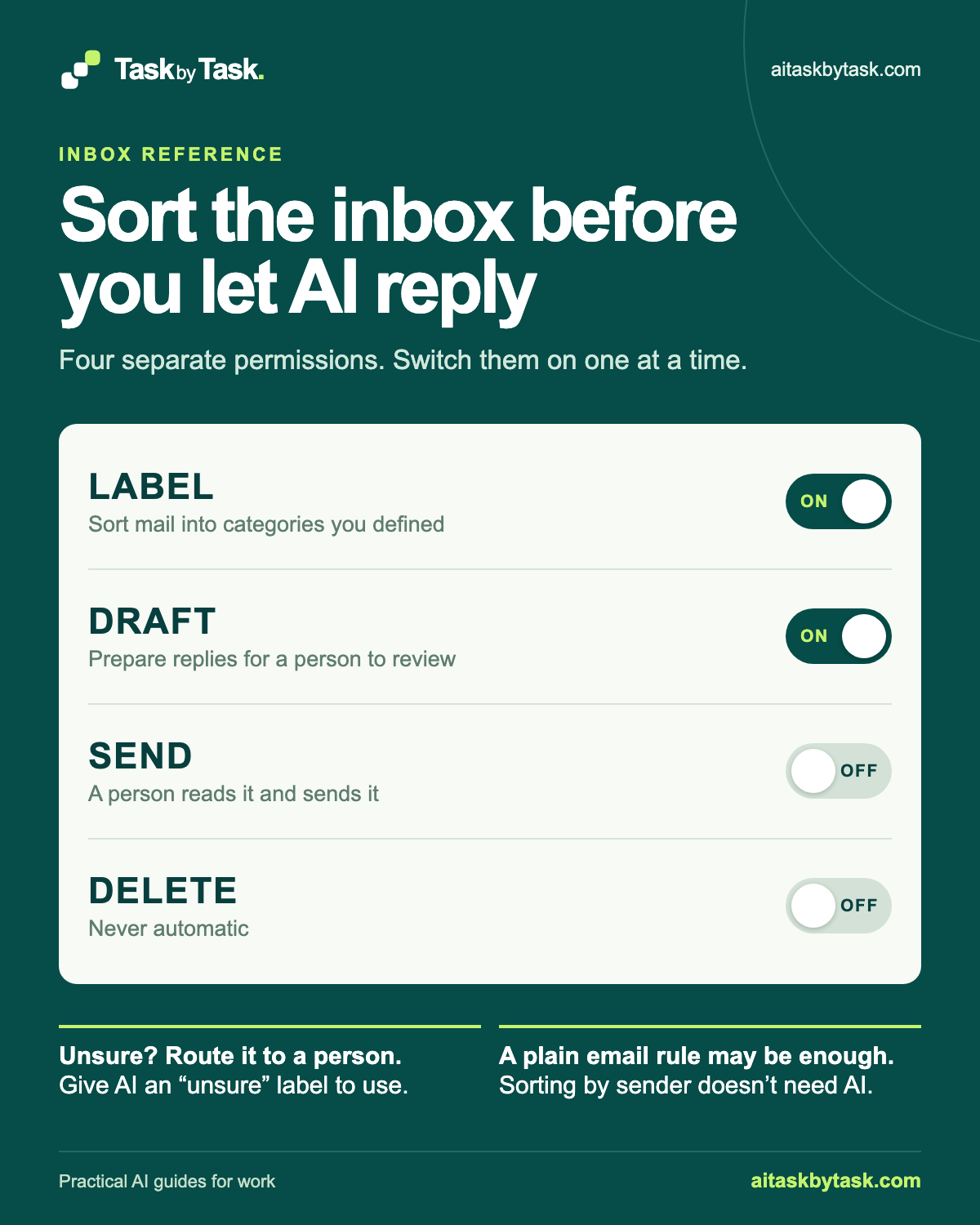
“Let AI handle the inbox” bundles four quite different permissions. Separate them:
- LABEL — on: AI sorts each email into categories you defined. A wrong label is annoying but recoverable; a person still opens the email.
- DRAFT — on: AI prepares a reply for a person to review, edit and send. Nothing leaves the building without that person.
- SEND — off: a person sends. A sent email can make a promise, quote a price or share information that cannot be recalled.
- DELETE — off: never automatic. A deleted email that turns out to be the invoice dispute is a bad afternoon.
These are editorial defaults, not product settings. Where a tool or connector offers its own controls, check what it can actually read and change; the guide to checking what an AI connector can read and change covers that review. Keep SEND and DELETE off wherever money, commitments, customers, employees or personal data could be involved. That covers most business email.
Why this works: Separating the switches prevents a sorting trial becoming a sending trial.
What you should see: A record of what the tool may do, with Send and Delete off.
2. Define a small set of categories
Five to seven categories are usually enough. Each needs a plain definition, two typical examples and a boundary: what does not belong. The boundary does most of the work, because the hard emails are the ones that could fit two piles.
Always include an Unsure category. It is not a failure bin; it is the route that sends anything ambiguous to a person.
CATEGORY NAME:
WHAT BELONGS HERE (one sentence):
TYPICAL EXAMPLE 1:
TYPICAL EXAMPLE 2:
DOES NOT BELONG HERE (and where it goes instead):
WHO DEALS WITH IT:
DRAFT ALLOWED? yes / no
PLAIN RULE INSTEAD OF AI? yes / no / maybe

UNSURE
Any email that fits two categories, fits none, mentions a complaint,
dispute, legal matter, refund or personal circumstances, or that the
sorter cannot classify confidently. A person decides.
Mark “Draft allowed? no” for categories where a reply should come from a person’s own judgement, such as complaints, disputes and anything about an individual’s circumstances.
Why this works: A definition and an exception let you distinguish two similar piles.
What you should see: A small category list with an Unsure route and a named owner.
3. Check where a plain email rule is enough
Before asking AI to read anything, look at each category and ask: could the sender address or a fixed subject line identify it? Most email services let you create rules or filters that move or label messages by sender, subject or keywords. For predictable mail, a rule is cheaper, easier to explain and does exactly the same thing every time.
Good candidates for an ordinary rule:
- notifications from a system you use, with a consistent sender address
- newsletters and subscriptions
- automated receipts or reports with a fixed subject pattern
AI earns its place where the wording varies: customers describing the same request in twenty different ways, or a message whose category depends on what it actually says. If every category in your list can be handled by a rule, you may not need AI for sorting at all. That is a perfectly good result.
Why this works: A fixed sender rule avoids reading variable content when it adds no value.
What you should see: Predictable mail handled by ordinary rules; the remaining categories marked for testing.
4. Test the sort on past emails
Collect a batch of past emails you may use in the work account. Before running anything, label each one yourself. That is your answer key. Include a few awkward ones on purpose: the message that asks two things, the polite complaint, the forwarded thread.
Then paste the category definitions and the batch into your approved AI tool:
Sort the emails below into the categories defined here. Use only these
categories. Do not invent new ones.

CATEGORIES
[Paste your category definitions, including Unsure.]

RULES
- If an email could fit two categories, or fits none, use Unsure.
- If an email mentions a complaint, dispute, refund, legal matter or
  personal circumstances, use Unsure unless a category explicitly covers it.
- Do not reply to, summarise or rewrite any email.

Return a table with: email number, category, and a short quote from
the email that justifies the choice.

EMAILS
[Paste the numbered test batch.]
Replace [Paste your category definitions, including Unsure.], [Paste the numbered test batch.] with the corresponding detail or notes from your own task.
The quote column matters. It lets you see why each label was chosen and spot a guess dressed up as a decision. The Unsure instruction gives the tool a sanctioned way out instead of forcing a confident wrong answer, although it does not guarantee the tool will use it.
Compare the table with your answer key, email by email. Look in particular for:
- a complaint or dispute labelled as routine
- an email that asks two things, labelled by only the first
- anything sent to a category when it should have gone to Unsure
- emails missing from the table altogether
When you find a mismatch, fix the definition, not just the one email. Then rerun the whole batch, because a sharper boundary can move other emails too.
Why this works: A human answer key and a supporting quote make wrong classifications visible.
What you should see: One row per email, compared with the answer key, including the awkward cases.
5. Decide what to switch on, and when to widen it
Use the test to set the switches for each category, and record the decision:
INBOX AND OWNER:
TEST BATCH: how many emails, which dates, who labelled the answer key
MISMATCHES FOUND AND DEFINITIONS CHANGED:
LABEL: on / off — categories covered:
DRAFT: on / off — categories allowed; who reviews drafts:
SEND: off (person sends)
DELETE: off (never automatic)
HANDLED BY PLAIN RULES INSTEAD:
UNSURE ROUTE: who checks it, and how often:
REVIEW AGAIN WHEN:
Before widening any permission, even from LABEL to DRAFT for one more category, check:
- the category passed a fresh test batch, not only the one you tuned it on
- someone owns the Unsure pile and actually clears it
- a person has reviewed real drafts for that category and knows what a bad one looks like
- you know what the tool can access, and how to switch it off
For a fuller list of actions an automation should stop for, see Set the actions an AI agent must stop for. If you build the sort in an automation tool, Build a small Zapier AI workflow with a failure rule shows how to send proposed classifications to a review queue first.
Why this works: A fresh batch tests the revised definitions rather than memorised repairs.
What you should see: A switch decision for each category, an owner for Unsure and a retest trigger.
Check the result
- The output contains every email number exactly once.
- Complaints, disputes and multi-topic messages follow your Unsure rule.
- Labels match your answer key on a fresh batch, not just the tuned one.
- Send and Delete remain off; the named person owns Unsure and the send.
The usual failure: a delivery request hides a payment dispute later in the message. The sorter reads the first request and calls the whole email routine.
Update the categories. ORDERS excludes any email that also mentions a
charge, refund or payment problem. Those go to Unsure. Rerun the full
batch and show only emails whose label changed, with the quote that
caused the change.
Worked example: a small workshop’s inbox
Fictional example. A three-person furniture workshop shares one enquiries inbox. The owner defines five categories plus Unsure:
QUOTES       New work requests asking for a price. Not changes to existing orders.
ORDERS       Changes, delivery questions or updates about an existing order.
PAYMENTS     Invoices, remittances and payment questions. Not disputes.
SUPPLIERS    Messages from timber and hardware suppliers.
NOTICES      Newsletters and automated system emails.
UNSURE       Two categories, none, or any complaint, dispute or refund.
NOTICES all come from a handful of known senders, so the owner makes an ordinary email rule for them and leaves them out of the AI sort. SUPPLIERS come from three known addresses: another plain rule. That leaves QUOTES, ORDERS, PAYMENTS and UNSURE for AI to label.
The owner labels eight past emails first, then runs the sorting prompt. An illustrative result compared with the answer key:
Email 1
Owner label: QUOTES
AI label: QUOTES
Quote: "could you price a walnut dining table"

Email 2
Owner label: ORDERS
AI label: ORDERS
Quote: "is the bench still on for Friday delivery"

Email 3
Owner label: PAYMENTS
AI label: PAYMENTS
Quote: "remittance attached for invoice 1042"

Email 4
Owner label: QUOTES
AI label: QUOTES
Quote: "what would six oak shelves cost"

Email 5
Owner label: UNSURE
AI label: ORDERS
Quote: "can we move delivery to next week"

Email 6
Owner label: ORDERS
AI label: ORDERS
Quote: "please change the finish to matt"

Email 7
Owner label: UNSURE
AI label: UNSURE
Quote: "the drawer arrived split"

Email 8
Owner label: PAYMENTS
AI label: PAYMENTS
Quote: "do you take card payments"
Seven of eight match. Email 5 is the useful miss. It asks to move a delivery, but its second paragraph says the customer was charged twice. The AI labelled it by the first request; the owner labelled it Unsure because a disputed charge needs a person.
The owner uses the repair in Check the result to exclude charge, refund and payment problems from ORDERS. The rerun moves email 5 to Unsure and quotes the disputed charge.
The owner reruns the batch, then tests a fresh set of past emails before deciding. The decision: LABEL on for QUOTES, ORDERS and PAYMENTS; DRAFT on for QUOTES only, reviewed by the owner before sending; SEND and DELETE off. One colleague checks the Unsure pile twice a day.
Notice what did not happen: nobody let the tool reply to the customer with the double charge. A tidy auto-reply about delivery dates would have been perfectly polite and entirely beside the point.
Go deeper
You can stop after the checked decision above. These lessons help when the inbox, team or tool changes.
Test for omissions as well as wrong labels
A sort can be accurate for every email it shows you and still drop one. Count the emails in your batch and count the rows in the result. If they differ, find the missing ones before reading anything else.
Check your table against the input. List every email number from the
input that does not appear in the table. If none are missing, say so
and give the total count of emails you sorted.
Still count them yourself. The tool’s confirmation is not an independent check. For working through a large backlog rather than setting up ongoing sorting, see Triage a Gmail backlog with Gemini, which focuses on the one message that matters.
Review drafts before widening DRAFT
Keep a sample of drafts alongside the replies sent. Look for unagreed dates, stale prices and tone that misses the customer’s problem.
Ask for drafts that keep their gaps visible:
Draft a reply to the email below for a person to review. Use only facts
in the email and in the notes provided. Do not promise dates, prices or
outcomes that are not stated. Put any missing information in a separate
"Before sending" list.

NOTES
[Paste facts you may use, such as standard lead times or price list.]

EMAIL
[Paste the email.]
Replace [Paste facts you may use, such as standard lead times or price list.], [Paste the email.] with the corresponding detail or notes from your own task.
If a category’s drafts regularly need rewriting from scratch, switch DRAFT off for that category. Writing the reply yourself is a legitimate outcome.
Re-test when something changes
Categories drift. A new product, a new supplier, a seasonal rush or a change of tool can all move emails between piles. Keep your test batch and answer key, and rerun them when anything significant changes, or when the Unsure pile suddenly grows or shrinks.
A rising Unsure pile usually means a category definition no longer fits the mail. A shrinking one is worth checking too: it may mean the tool has become more confident, not more accurate.
Sources
Google: create rules to filter your emails and Microsoft: manage email messages by using rules describe ordinary filters and rules. The switches and category test are this guide’s editorial method.