Write useful image alt text with AI
"A teal chart on a white background" describes the decoration and misses the point. Someone using a screen reader wanted the numbers.
What you'll make
short alt text for one image that carries what the reader needs from it, checked against the image, plus a fuller description or table where the image holds more than a sentence can.
What you'll need
ChatGPT, Claude, Gemini or Copilot with image upload in your work account, an image you’re allowed to share with it, the text around the image, and about ten minutes.
Example result.
Weak: “A teal bar chart with three bars.”
Useful: “Monthly enquiries in 2026: January 13, February 21, March 17. February is highest.”
Alt text is the text alternative a screen reader reads out in place of an image. What it should say depends on why the image is there, not on everything visible in it.
1. Work out the image’s job
Ask what the reader needs from the image in this place. Is it showing a comparison, a product detail, a step in a process, or just decoration? Read the surrounding text: a chart beside a full data table needs less than a chart that’s the only copy of its figures. If the image is a link or a button, its alt text should say what it does.
W3C’s image tutorial sorts images into these roles, and the same image can play different roles on different pages.
Why this works: the job decides what to include. Without it, the AI describes colours and shapes.
What you should see: one sentence on what the image is for here.
2. Ask for a purpose-based draft
Upload the image and give its context.
Draft alt text for the attached image.

Purpose: [what it helps the reader understand or do]
Surrounding text: [nearby text]
Checked values or labels: [values, or "none"]

Describe the information and meaning that matter for this purpose, not decorative detail. Don't infer identity, emotion, cause or anything not shown. Mark anything you can't read clearly. If the image holds more than a short alternative can carry, say so and suggest what belongs in a fuller description or table.
[what it helps the reader understand or do] is your sentence from step 1. [nearby text] is the caption or paragraph around it. [values, or "none"] are any figures or labels you’ve checked yourself.
Why this works: checked values give you a way to catch a misread number, and “mark anything you can’t read” stops a polished guess.
What you should see: a sentence or two of alt text, any unclear parts flagged, and a note if a fuller description is needed.
3. Check the draft against the image
Compare every number, name and label with the image. Remove any cause or judgement the image doesn’t show: “sales rose because of the campaign” can’t come from a chart of monthly totals. Then read the alt text without looking at the image. Does the reader still get what they need?
For detailed charts and diagrams, keep the alt text short and put the full information in a table or description next to the image. W3C’s complex-image guidance explains the split. There’s no universal character limit, but some tools have one; Canva allows 250 characters.
Why this works: AI image reading is good at layout and weaker at exact figures, which are usually the point.
What you should see: alt text where every figure matches the image and nothing is added.
4. Put it in the right place
- Word and PowerPoint (Microsoft 365): right-click the image and choose View Alt Text, or use Picture Format › Alt Text. For a chart, click its outer border so the text attaches to the whole chart.
- Google Docs and Slides: select the image, open the image options menu and choose Alt text.
- Canva: select the image, open More › Alternative text, type it and Save. Alt text survives PDF, PPTX and HTML exports, but not PNG or MP4 downloads.
- A website or CMS: use the image’s alt text field, not the caption or title.
If the image is decorative, tick Mark as decorative in Word, PowerPoint or Canva instead of writing a description.
Why this works: alt text in the wrong field, or lost in an export, never reaches the reader.
What you should see: the text saved in the image’s alt text field, and still there after you export.
Check the result
- Every figure and label in the alt text matches the image.
- Nothing is inferred: no cause, mood, identity or target the image doesn’t show.
- The alt text gives what the reader needs for this purpose, not a list of what’s visible.
- It’s in the alt text field and survives the format you share.
The usual failure: a misread number, or a reason the image doesn’t contain. A 21 becomes a 27, or “thanks to the spring campaign” appears. The sentence sounds authoritative, so it gets pasted in unchecked. Read every figure against the image.
Revise the alt text. It reads [what it got wrong]; the image shows [what's correct]. Remove [unsupported claim]. Keep it to what the image shows for this purpose: [purpose].[what it got wrong] and [what's correct] are the misread value or label and the right one, [unsupported claim] is any added reason or judgement, and [purpose] is your sentence from step 1.
Worked example: three months of enquiries
Fictional example. A report includes this chart to show the monthly comparison. No target or cause is given.
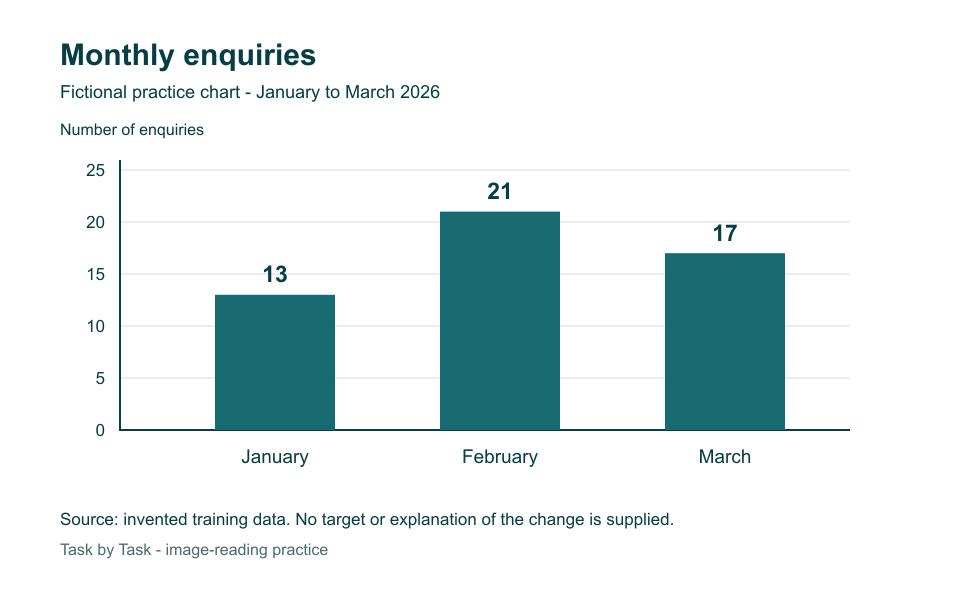
With the purpose and no checked values, the first draft said:
“Bar chart showing monthly enquiries: January 13, February 27 and March 17, with February’s peak reflecting successful marketing.”
- The failure. February is 21, not 27, and nothing in the chart mentions marketing.
- The repair. The repair prompt with “February 27”, “February 21” and “February’s peak reflecting successful marketing” gave the useful version in the example result: “Monthly enquiries in 2026: January 13, February 21, March 17. February is highest.”
- What else it needs. If the report quotes the figures elsewhere, this is enough. If the chart is the only place they appear, add a small table beside it as well.
Task kit for this job: Download (ZIP) · Reusable instructions
Go deeper
Optional training: Review alt text your tools wrote for you
Many tools now draft alt text themselves. In Microsoft 365 you can turn on AI-generated alt text under File › Options › Accessibility, then review each suggestion and tick Approve alt text when it’s right. Google notes that some images arrive with automatic alt text, which you should check. Treat these drafts like any AI draft: does it serve the image’s purpose here, are the details right, has it guessed at anything? Automatic text tends to describe what’s visible (“a group of people at a table”) rather than why the image is there.
Optional training: Decorative is a role, not a verdict on quality
A beautiful image can still add nothing beyond the text around it. W3C’s decorative-image guidance uses an empty alternative, alt="", in HTML rather than leaving the attribute out, so screen readers skip it. Don’t mark every cover or illustration decorative by default; check its role on this page. For an image inside a link, the alt text should describe where the link goes.
Optional training: Keep the alt text with its source
Save the purpose, the checked values and the final alt text together. When the chart is updated next month, the old alt text becomes wrong beside the new image, and nobody notices because it’s invisible. Recheck alt text whenever the image changes, and check the final exported file, not just the editor. For help reading uncertain detail in an image, see Give AI a screenshot and ask the right question.
Sources
- W3C WAI: Images tutorial
- W3C WAI: Informative images
- W3C WAI: Complex images
- W3C WAI: Decorative images
- Microsoft Support: Add alternative text to a shape, picture, chart, SmartArt graphic, or other object
- Google Docs Editors Help: Make your document, presentation, sheets and videos more accessible
- Canva Help Center: Create and edit alt text for your images and elements