Use Gemini Canvas for an editable draft or small tool
Nineteen items need four six-item cartons, not three and a bit. Give your first Canvas tool a rule you can check without trusting the interface.
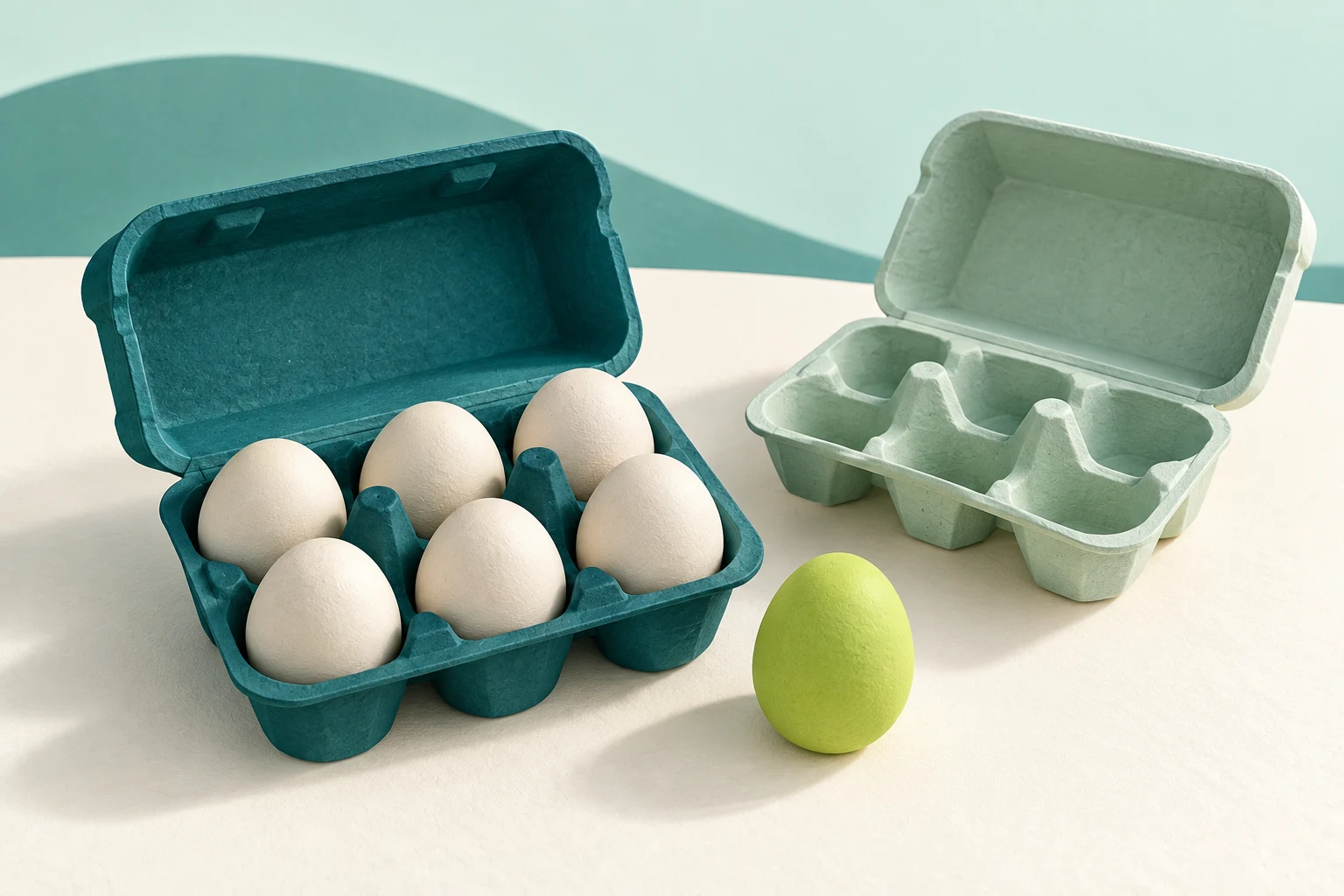
What you'll make
a small packing calculator in Gemini Canvas with two editable inputs, tested against answers you worked out yourself.
What you'll need
Gemini on a computer at gemini.google.com, signed in with a work account that has Gemini, a simple rule you can calculate by hand, and about twenty minutes.
Example result.
| Items | Per carton | Cartons |
|---|---|---|
| 18 | 6 | 3 |
| 19 | 6 | 4 |
| 0 | 6 | 0 |
| blank | 6 | warning: quantity needed |
| 19 | 0 | warning: must be more than 0 |
1. Write the rule before you open Canvas
Pick a rule you can calculate yourself. Here: divide items by items per carton, then round up to a whole carton. Zero items need zero cartons. A blank quantity is unknown, not zero, and zero per carton is invalid. This practice assumes identical items that all fit; it ignores weight and size.
Work out the example result’s answers by hand. Those are your tests.
Why this works: if you know the answers before the tool exists, the tool can’t talk you into a wrong one.
What you should see: one rule and five test cases with expected results.
2. Brief the tool in Canvas
Go to gemini.google.com. Below the text box, click Add Files, then Canvas. Paste the prompt and click Submit.
Create a small interactive packing calculator in Canvas. Inputs: whole-number item quantity (zero or more) and whole-number items per carton (more than zero). Result: the number of cartons needed, which is quantity divided by items per carton, rounded up. Show the rule on screen.

Label both inputs clearly and make them keyboard usable. If an input is blank or invalid, show a clear warning and clear the previous result; never treat a blank as zero. Zero items with a valid carton size gives zero. No external services, storage, AI features or ordering. Start with 18 and 6, and explain how the calculation works.
Why this works: clearing the old result stops a valid number from a moment ago looking like the answer to an invalid input.
What you should see: a working preview in the Canvas panel showing 3 cartons for 18 and 6.
3. Test the preview, then read the code
Type each test case from step 1 into the preview. Then try a negative number and a fraction. A tool that rejects every quantity below one wrongly rejects the valid zero.
Click Code at the top right of the Canvas panel to see the calculation, and Show console for errors. Math.ceil(quantity / capacity) rounds up, but the check for blanks has to happen first: converting an empty field to a number gives 0, which quietly defeats the missing-value rule.
Why this works: the preview shows what the tool does; the code shows why, which tells you whether a pass was luck.
What you should see: every test case matching your hand-worked answer.
4. Edit a draft the same way
Canvas also holds documents. Ask for a draft in Canvas, then edit one part at a time: select the paragraph in the Canvas panel, type the change you want in the text box and press Enter, or use Suggest edits. Read the changed paragraph against your source facts. If an edit makes things worse, use Previous Version at the top to go back.
Why this works: a selected paragraph is a small change you can check, in the same way a test case is.
What you should see: one paragraph changed, the rest untouched, and the facts still matching your source.
Check the result
- 19 in sixes gives 4, not 3 or 3.17.
- 0 items gives 0, and a blank gives a warning, not 0.
- Changing an input to something invalid clears the old result.
- The code checks for blanks before it calculates.
The usual failure: the blank becomes a zero, or the stale result stays. Clear the quantity and the tool shows “0 cartons”, or keeps showing “4” from the last valid input. Spot it with the blank test. Then:
In the Canvas calculator, [input or state] produces [observed result]. The rule requires [correct result or warning]. Fix only the relevant validation, calculation or control, and keep the other checked behaviour and the no-services scope. Recheck 18/6, 19/6, 0/6, blank quantity, zero capacity, a negative and a fraction, and explain what changed.Fill in what you typed, what the tool showed, and what the rule says it should show.
Worked example: a plausible number can be wrong
Fictional example. Nineteen identical display samples, six per carton.
The first version showed 3 for 19 and 6, and 0 cartons when the quantity was cleared.
- The failure. Two bugs. It rounded 3.17 to the nearest whole number instead of up, and it treated the blank as 0. Three cartons hold only 18 samples; the nineteenth needs a fourth.
- The repair. The correction prompt, run once for each bug, switched to rounding up and added a blank check before the calculation. The rerun matched every line of the example result.
- The check that mattered. Zero items giving 0 is right; a blank giving 0 is wrong. They look identical on screen, which is why the blank test exists. Try moving the count across the six-item boundary in the calculator to see the extra carton appear.
Try it
See the item that needs the next carton
Move the sample count across a capacity boundary. One spare item still needs a whole carton.
19 samples: 4 whole cartons. The last carton holds 1 of 6.
Task kit for this job: Download (ZIP) · Reusable instructions
Go deeper
Change the rule and the tests together
Real packing often mixes carton sizes: say, boxes of 6 and boxes of 4. Before asking Canvas to handle that, write the new rule (which size first? is a part-empty box allowed?) and new hand-worked tests. Change the rule, the prompt and the tests at the same time; a tool updated without new tests is untested. For a version you keep in your own files, see Get Codex to build a simple business calculator, and for awkward inputs in general, Check an AI-built form with missing and awkward inputs.
Share or export deliberately
Share & export at the top right of the Canvas panel can share a link, open text with Export to Docs, or open slides with Export to Slides (or save them as PDF). A shared link opens only at gemini.google.com. Before you share a tool, check what it shows and does; a private preview passing your tests doesn’t make a public link sensible. See share an AI result without sharing the whole conversation.