Make a one-page project factsheet and inspect the actual export
The file your colleague opens is the output. A tidy preview in chat is only a preview, and it's the PDF that gets forwarded to the steering group.
Example output
A one-page project factsheet
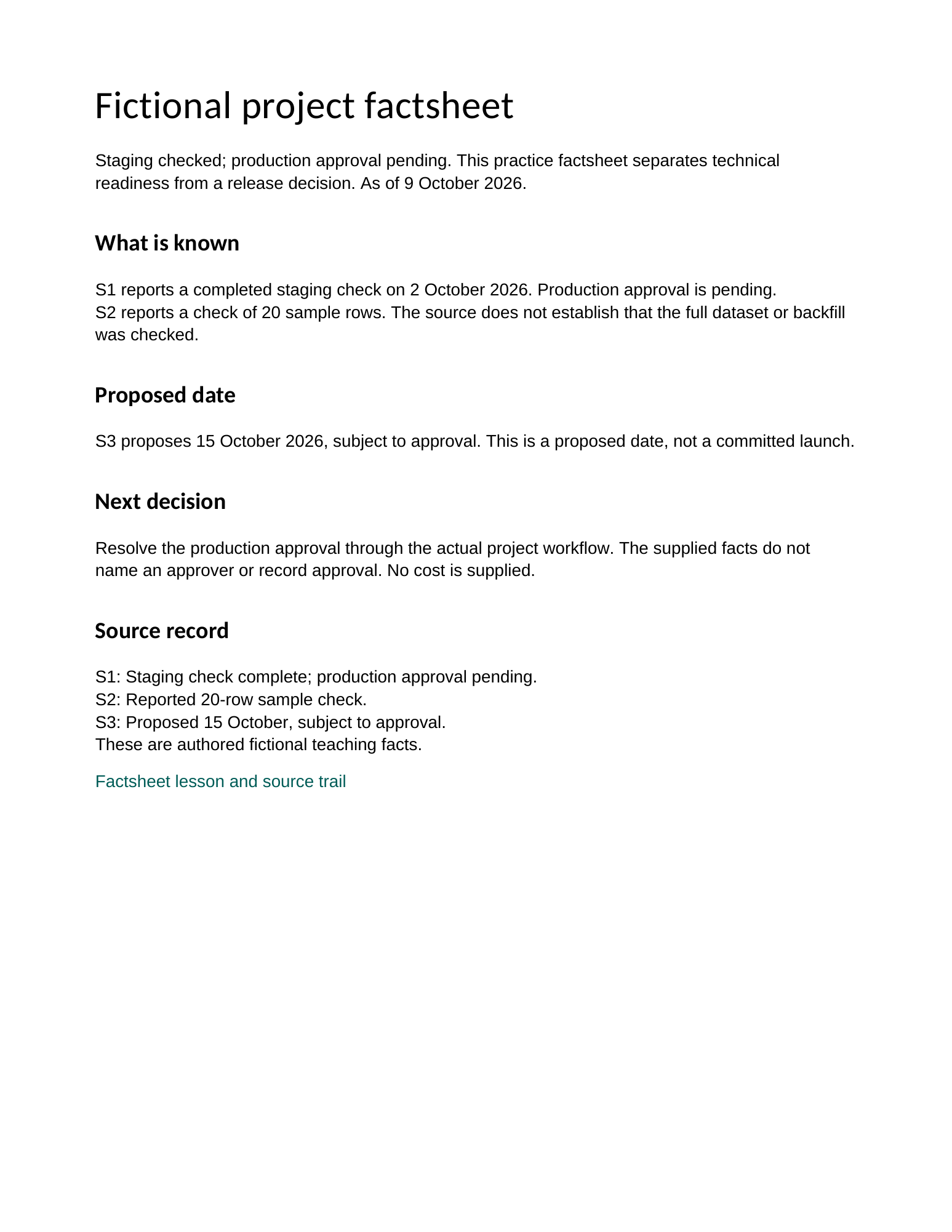
Example factsheet (fictional project): staging checked, production approval pending.
Read the prompt
Create a one-page project factsheet from these permitted facts only.
Lead with current status and the reader's actual decision or next action.
Retain conditions, dates and source IDs. Mark missing facts explicitly.
Use readable headings and editable text; keep source links working.
Return the editable document and an exported PDF. Do not shrink text
to force one page or turn pending approval into completed deployment.
Provide a concise source-to-claim map and list any layout trade-offs.What you'll make
a one-page project factsheet as an editable document and a PDF, with the PDF itself checked for status, dates, links and layout.
What you'll need
the project facts with an as-of date and source references, and a tool that can create files: Claude (with Code execution and file creation turned on) or ChatGPT can return a Word document and a PDF; Copilot in Word drafts straight into the document. Allow about 20 minutes. To see a finished one, download the example factsheet (Word) and its PDF.
1. Give the content order and the limits
Put the status and the reader’s decision first, then the few facts that explain it, then anything unknown or pending. If you need to separate facts from forecasts in your notes first, the facts, risks and predictions guide covers that.
Create a one-page project factsheet from these facts only: [facts].
Lead with the current status and the decision the reader needs to make.
Keep every condition, date and source ID. Mark missing facts as missing.
Use readable headings, editable text and working links. Return an
editable Word document and a PDF export. Don't shrink the text to fit
one page or turn "pending" into "done". List any layout trade-offs.
[facts] is your project facts, each with a short source ID such as S1.
Why this works: “one page” is a layout target, not permission to drop a condition. Saying so stops the model from shortening “approval pending” to nothing.
What you should see: two files to download, plus a short list of anything it moved or shortened.
2. Open the PDF and read it at normal size
Download the PDF and open it, not the chat preview. Check:
- the status line says the same thing as your source;
- every date and condition is intact;
- each link opens the right place;
- it’s one page, with no blank second page or clipped line;
- the text is readable at 100% zoom.
Then ask the model to compare too:
Compare the PDF you exported with my facts and the Word document. Check
every status, number and date, every link, the page count and whether
any qualification was lost when the text was shortened. List what you
checked in the file itself separately from what you're assuming.
Why this works: text and layout fail separately. A line can be correct in the Word file and clipped in the PDF, or readable and with a broken link.
What you should see: your five ticks, and a model report that separates file checks from assumptions.
3. Fix the editable file, then export again
If something’s wrong, correct it in the Word document, not the PDF, and export again. Then check the new PDF the same way. Editing only the PDF leaves the source version wrong for next time.
Why this works: the editable file is the one you’ll update next month. Fixing it keeps both versions telling the same story.
What you should see: a new PDF that passes all five checks, and a Word file that matches it.
Check the result
- The status line matches the source wording, including “pending”.
- Dates still carry their conditions, such as “subject to approval”.
- Every link works and the page count is one.
- No text is clipped, tiny or pushed onto a blank second page.
The usual failure: the PDF’s headline promotes the project. “Staging checked; production approval pending” becomes “Production live 15 October” somewhere between the facts and the export. Spot it by reading the status line of the PDF against S1. Repair it:
The PDF says [wrong status], but source [ID] says [source wording].
Correct the status and the summary in the Word document, keep the
pending condition, then export again. Give me both updated files and a
note of what changed, and check the new PDF's status line, links and
page count.
Worked example: pending stays pending
Fictional example. A project lead asked for a factsheet from three facts:
S1: Staging check complete; production approval pending.
S2: Reported 20-row sample check.
S3: Proposed 15 October, subject to approval.
The chat preview looked right. The first PDF export opened with a bold status bar:
Weak: “Production live 15 October. All checks complete.”
- Two facts were overstated. S1 says approval is pending, and S2 is a 20-row sample, not “all checks”. The preview had the right wording; the PDF’s banner had been generated separately.
- The repair went through the Word file. The repair prompt with “Production live 15 October”, “S1” and “Staging check complete; production approval pending” fixed the status in the editable document, and the new export reads “Staging checked; production approval pending”, as in the example factsheet.
- The second check caught a layout slip. The corrected PDF ran to a nearly blank second page holding only the source record. Moving it into a smaller font was the wrong fix; trimming the “What is known” paragraph was the right one.
Task kit for this job: Download (ZIP) · Reusable instructions
Go deeper
Keep the facts beside the document
Store the source facts and the as-of date in the same folder as the Word file, and update them first each time. Then the next factsheet starts from current facts rather than last month’s PDF.
Use a template with conditional sections
If you make factsheets regularly, a template with sections that appear only when you have the facts (budget, approver, decision date) stops the model filling gaps with plausible defaults. The document template guide shows how.
Keep a short record of the run
Note the facts used, the prompt, the final files and the checks you did. The task run record guide shows a lightweight format.