Ask AI to draft a process diagram you can check
A tidy flowchart can still route the wrong case to the wrong person. Give AI the actual rules, then check decisions and exceptions before admiring the layout.
Example output
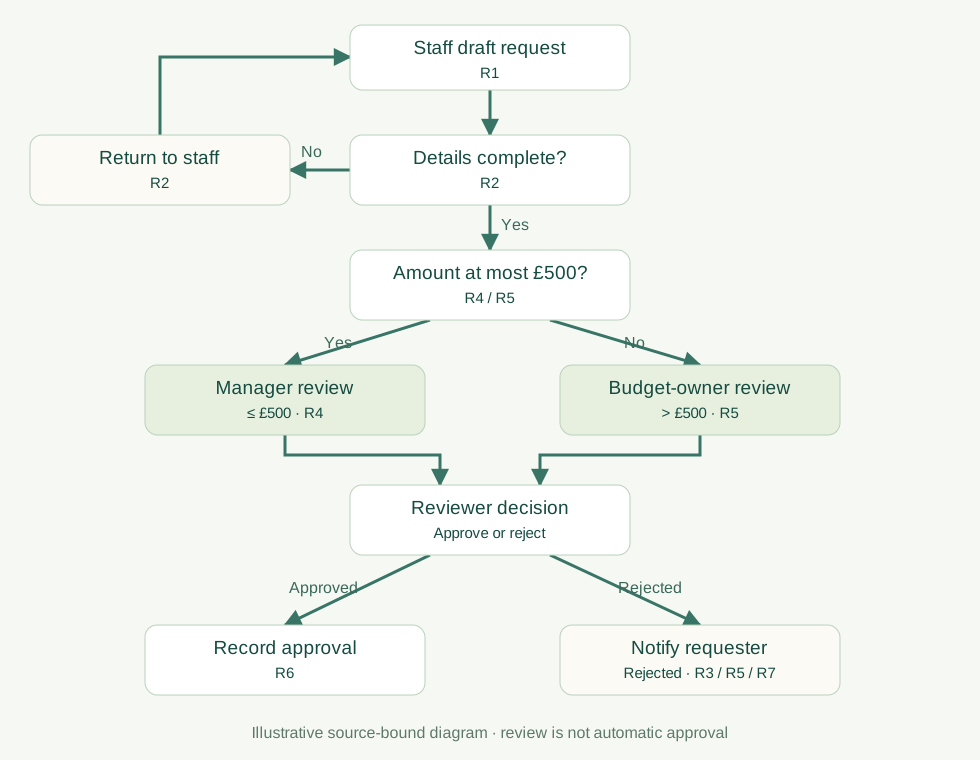
An editable process diagram
Example purchase-request procedure: the branches keep the £500 threshold and the rejection routes.
Source rule: each reviewer may approve or reject. Review is not automatic approval.
Read the complete diagram prompt and source rules
In the existing prompt, change only the line 'R2: Missing detail returns to staff.' to 'R2: Missing detail returns to the requester.'What you'll make
an editable process diagram where every branch points to the rule it comes from, with a plain-text path list beside it and any missing rule left as a question.
What you'll need
the current written procedure with its exceptions and decision owners; ChatGPT, Claude, Copilot or Gemini in your work account; and about 20 minutes. The example output at the top has a complete prompt with seven fictional rules you can practise on.
1. Give the rules, then ask for shapes
Write the procedure as numbered rules with IDs (R1, R2…): steps, decision conditions, outcomes and return paths. Mark an unclear owner or threshold as a question rather than guessing. Then ask for the diagram as Mermaid, a short text format that describes nodes and arrows and stays editable.
Draft an editable process diagram from these rules only, as Mermaid
source, plus a plain-language path list. Give each node and decision
branch its rule ID. Keep exact thresholds, exceptions, rejection and
return paths. Where a rule is missing or unclear, add a visible
question node instead of guessing. Do not add policy or authority
that the rules don't state.
Why this works: rule IDs on branches make every arrow checkable. Without them, you’re checking whether the diagram looks right.
What you should see: a block of Mermaid text, a path list and any open questions. Paste the Mermaid into the Mermaid Live Editor to see and edit the diagram, or ask for an .mmd file and an SVG preview if your tool creates files.
2. Trace an ordinary case, a threshold case and an exception
Pick three cases: one that goes straight through, one that sits exactly on a threshold and one that gets rejected or sent back. Ask for the route of each.
List the diagram path for [ordinary case], [threshold case] and
[exception]. For each decision, give the rule ID and its exact
condition. Point out any missing or ambiguous rule instead of
assuming one. Do not treat the diagram as evidence that a rule exists.
[ordinary case], [threshold case] and [exception] are your three test cases, such as “£200 request”, “exactly £500” and “manager rejects”.
Why this works: a route table turns “is this diagram right?” into three small questions you can check against the rules.
What you should see: three short paths, each decision tagged with a rule ID you can find in your procedure.
3. Check the file is really editable
Open the Mermaid source or file and change one label. If the “diagram” is a picture pasted into a document, the words and arrows can’t be changed and the next update starts from scratch. Keep the source and the preview together.
Why this works: the next rule change is when an editable source pays for itself.
What you should see: the label changes in the preview after you edit the text.
Check the result
- The threshold case follows the rule’s exact wording: “£500 or less” is not “less than £500”.
- Every rejection and return path in the rules appears in the diagram.
- Each branch has a rule ID, and the ID says what the branch does.
- Open questions are still visible, not quietly resolved.
The usual failure: the threshold moves or the rejection route disappears. The diagram still looks tidy, which is why nobody notices until a £500 request goes to the wrong person. Spot it with the threshold case from step 2.
Branch [branch] uses [wrong condition] instead of rule [rule ID and
exact condition]. Correct that branch and the path list. Restore
[missing route] from its rule. Keep labels editable and questions
visible. Do not redesign the whole process or add a new rule to
tidy the layout.
[branch] is the faulty decision; [wrong condition] is what the draft says; [rule ID and exact condition] is the rule it should follow; [missing route] is any path the draft dropped.
Worked example: a purchase-request procedure
Fictional example. The seven rules are in the diagram prompt in the example output at the top (R1–R7). The key ones: R3, the manager can reject a request; R4, the manager may approve £500 or less; R5, above £500 the budget owner reviews.
The first draft’s path list read:
Request complete → amount less than £500 → Manager approves → Recorded
Request complete → amount £500 or more → Budget owner reviews- The failure. “Less than £500” sends a request for exactly £500 to the budget owner; R4 says the manager can approve it. And there’s no route for the manager rejecting a request, although R3 allows it.
- The repair. The repair prompt, naming the threshold branch, “less than £500” and R4’s “£500 or less”, plus R3 as the missing route, gave: “≤ £500 → Manager approves (R4) or rejects (R3) → Recorded (R6) / Requester told (R7). > £500 → Budget owner reviews (R5).”
- The test that caught it. The threshold case. A £200 request routes correctly in both versions.
Try it
Check AI’s diagram against the actual rules
Compare a source-bound diagram with a prepared faulty draft. Test the equality and rejection cases, then copy a specific AI check or repair request.
Approval and rejection remain possible. A complete form is eligible for review, not automatically approved.
The example in text
- R1: Staff draft a request.
- R2: Missing detail returns to the requester.
- R3: The manager can reject a request.
- R4: The manager may approve an amount of £500 or less.
- R5: Above £500 the budget owner reviews and may approve or reject.
- R6: An approved request is recorded.
- R7: A rejection is communicated to the requester.
Task kit for this job: Download (ZIP) · Reusable instructions
Go deeper
Start from a whiteboard photo
A sketch is good for layout and bad as an authority. Ask for a transcription before any diagram: “Read this sketch and these written rules. Transcribe the visible labels, arrows and branches. Mark anything unreadable or ambiguous; don’t guess owners or policy. Use the sketch for layout and the written rules for facts. List conflicts and questions before building the diagram.” If the sketch’s decision box says something illegible, the diagram should say “Decision owner: unresolved”, not “Finance”. Then check the result: was a question mark quietly removed? Did “review” become “approve”? Did a return path vanish because it spoiled the layout?
Make the diagram readable without colour
Use branch text, direction and the path list. Colour can support approved, rejected or unresolved states, but shouldn’t be the only way to tell them apart. See accessible charts.
Keep the source with every exported preview
When you export a PNG or SVG for a slide, save the Mermaid source next to it with the same name. A preview on its own is a dead end the next time a rule changes.